
Managing your money
4 Jul 2025
Create a new Virtual Credit, Evolve or Debit Card
Add a Virtual Card to your account to protect yourself against unauthorised purchases.
Step 1 of 14
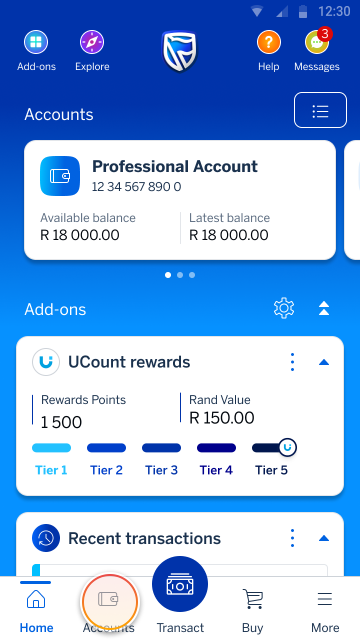
Go to your home screen and tap Accounts (on the bottom navigation).
Step 2 of 14
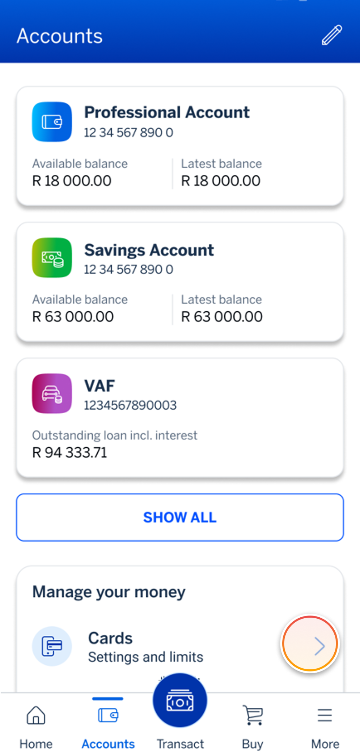
Tap the Cards menu option.
Step 3 of 14
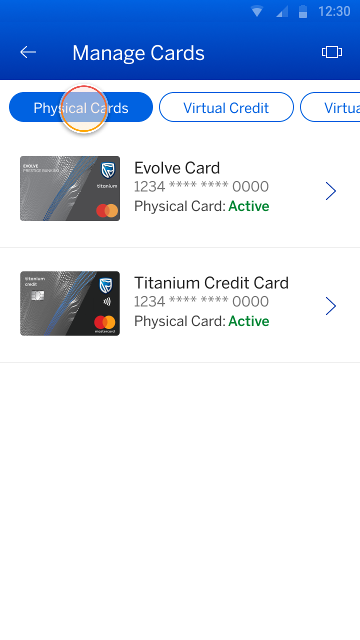
A list of your physical cards will be displayed on the Manage Cards screen.
Scroll through the Virtual Card menu options to view or create a:
- Virtual Credit Card
- Virtual Evolve Card
- Virtual Debit Card
- Prepaid Card
Step 4 of 14
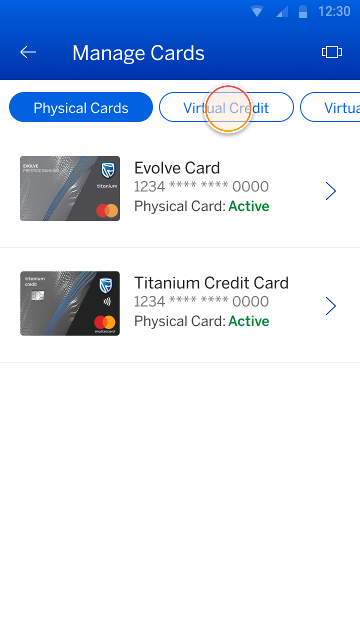
To create a Virtual Credit Card, tap on the Virtual Credit menu option.
Step 5 of 14
Tap:
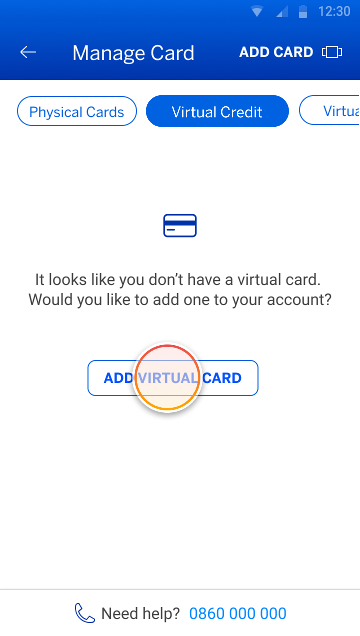
- ADD VIRTUAL CARD on an Android device; or
- CREATE VIRTUAL CARD on an iOS device.
Step 6 of 14
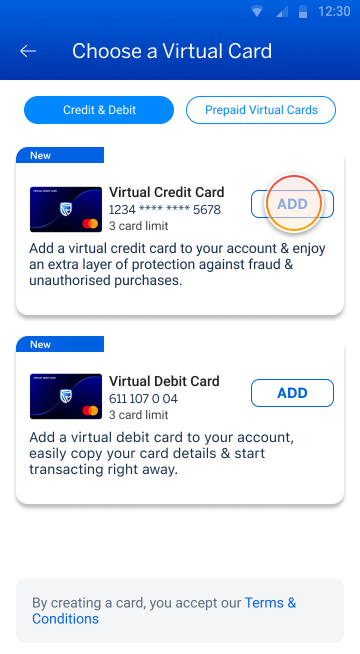
Tap ADD on the Virtual Credit Card you would like to create.
Step 7 of 14
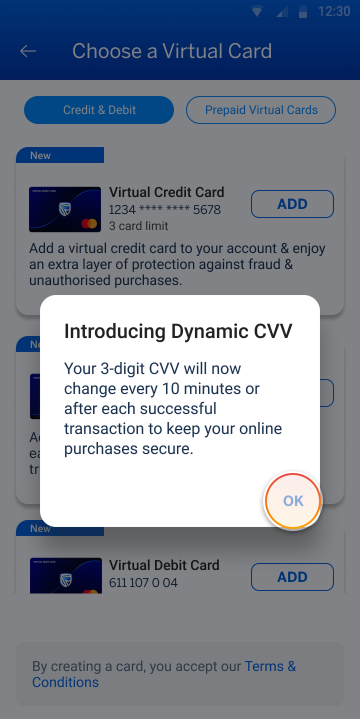
A pop-up will appear informing you that the Virtual Credit Card has a dynamic CVV, meaning that the CVV regularly updates and can only be used for single transaction, which gives you enhanced security.
Tap OK.
Step 8 of 14
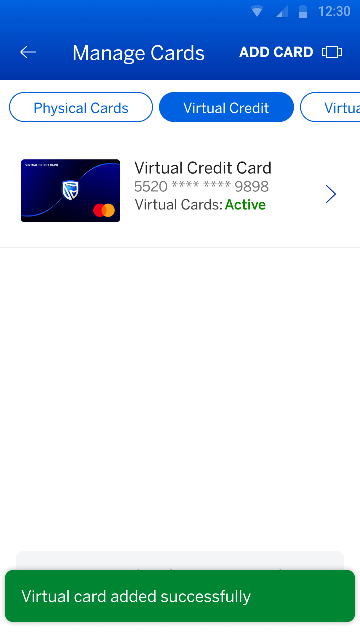
All done! Your Virtual Credit Card has been successfully created.
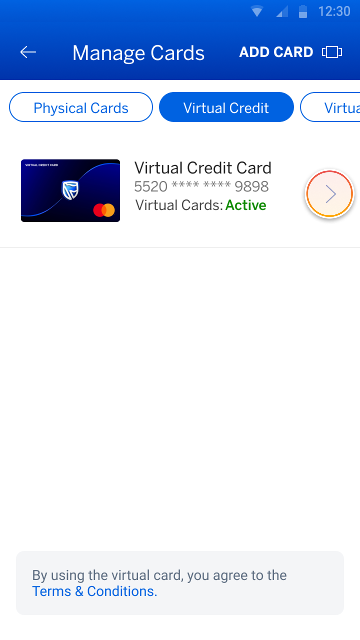
Back on the Virtual Credit screen you’ll see the Virtual Credit Card you’ve added.
Step 9 of 14
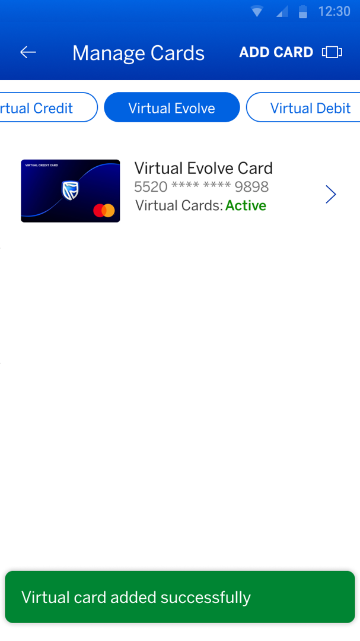
Follow the same process to create a Virtual Evolve Card or a Virtual Debit Card.
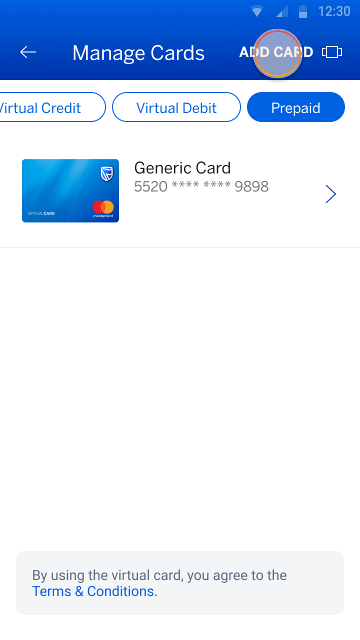
Step 10 of 14
Tap ADD CARD (in the header) to create another Virtual Prepaid CARD.
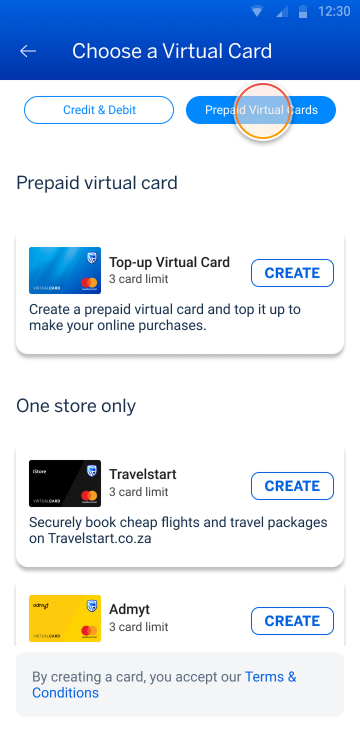
Step 11 of 14
Scroll through the Prepaid Virtual Card options and tap CREATE on the Virtual Card you would like to create.
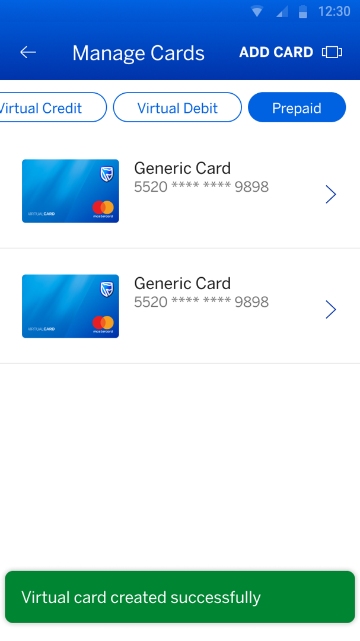
Step 12 of 14
Your second Virtual Prepaid Card has been successfully created.
Step 13 of 14
Back on the Manage Cards screen, tap on the Virtual Card to view the Virtual Card details.
Step 14 of 14
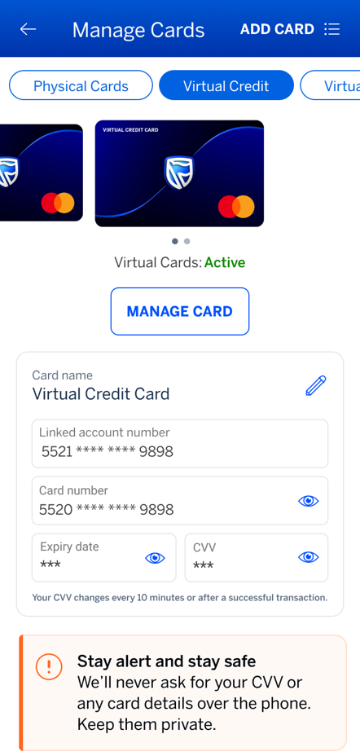
Tap on the eye icon to view and copy the Virtual Card’s:
- number
- expiry date
- CVV number
More things you can do on the app

Managing your money
1 Jul 2022
View your card PIN
Forgotten your card’s PIN? You can easily view your PIN on the app.

New feature
11 Aug 2025
Manage Online Stores on your Virtual Card
Secure your online transactions by linking your active retailers to your Virtual Card.
Keeping your money safe
3 Feb 2020
Change your monthly EAP limit
Learn how to change your monthly Electronic Payment (EAP) limit on the app.